How to Organize Digital Documentation on Construction Projects
If you’re managing construction projects with file cabinets, loose papers in your truck, or documents scattered across email, you’re wasting hours every week searching for critical information. A misplaced change order, outdated drawing, or missing RFI can delay projects and damage client relationships. For small to mid-size contractors, disorganized documentation drains profitability.
Learning to organize construction documents digitally doesn’t require expensive software or a complete business overhaul. With the right approach, you can create a system that makes every file accessible in seconds, whether you’re in the office or on the jobsite. This guide walks you through a practical construction document organization system that works with any cloud storage platform or construction file management software.
Why Digital Document Organization Matters for Construction Businesses
Managing your construction plans storage and project documentation directly impacts your bottom line and reputation every single day.
Disorganization costs add up quickly. When you spend 5-8 hours weekly hunting through filing cabinets or random folders for blueprints and drawings, you’re burning $15,000-$25,000 annually in lost productivity per person.
Daily operations suffer when your construction workflow relies on paper chaos. An architect sends an RFI needing a response by end-of-day, but the relevant plans are in your truck at another jobsite. Change orders get disputed because you can’t quickly prove what was agreed upon. Inspection deadlines slip because someone forgot to file permit documents.
Paperless construction documentation creates competitive advantages. When you respond to bid requests in hours instead of days and pull up any document instantly from your phone while standing on the jobsite, you look like the contractor who has it together. Cloud storage construction systems protect you from losing critical as-built documents to water damage, theft, or coffee spills.
Risk management becomes easier with proper document version control. When a client disputes scope of work two years later, having timestamped, organized digital records with clear file naming conventions can save your business from expensive litigation.
What You’ll Need Before Getting Started
Choose your cloud storage solution based on budget and project complexity. Basic options like Google Drive, Dropbox, or Microsoft OneDrive run $10-20 monthly and work great for smaller contractors, while construction-specific platforms like Procore or PlanGrid ($30-50/month) offer built-in features for blueprints, RFIs and submittals, and change orders.
Block out adequate time—4-6 hours initially to create your digital filing system and establish file naming conventions, plus 2-3 hours per existing project to migrate construction records.
Ensure basic digital skills like uploading files, creating folders, and accessing documents from your phone. If you can text photos and manage email, you’re qualified.
Get your scanning setup ready using a smartphone app like Adobe Scan for daily jobsite documentation, or invest in a dedicated scanner if you’re digitizing years of paper project documentation. Finally, secure team buy-in by explaining the new construction workflow to everyone who touches documents.
Creating Your Master Folder Structure
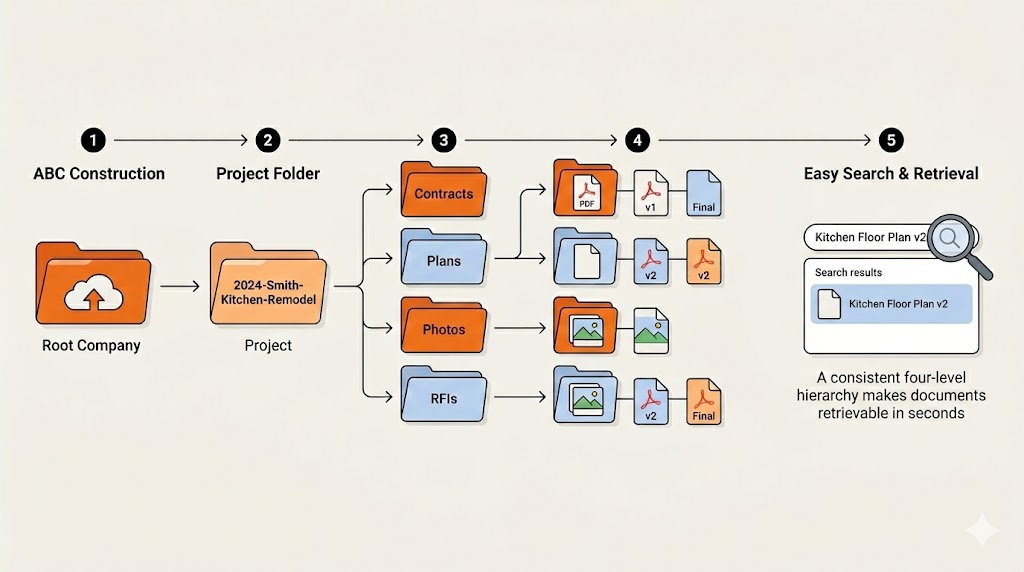
A solid folder structure is the backbone of digital document management construction. Without it, even the best cloud storage becomes chaotic.
The Three-Tier Hierarchy
Start with a master folder at the company level, create individual project folders for each job, and add category subfolders for different document types. This mirrors how you actually think about work—by company, by project, then by what you need to find.
Essential Category Subfolders
Include these folders for every project:
- 01-Contracts & Agreements
- 02-Plans & Drawings
- 03-Permits & Inspections
- 04-RFIs & Submittals
- 05-Change Orders
- 06-Photos & Progress Documentation
- 07-Invoices & Payment
- 08-Warranties & Closeout
- 09-Correspondence
Numbering System Benefits
When you prefix folders with numbers like 01, 02, and 03, they sort consistently whether you’re on your office computer, your phone, or accessing blueprints and drawings through a client’s tablet.
Trade-Specific Customization
Electrical contractors might add a “Panel Schedules” folder, while plumbers need “Pressure Test Reports” and HVAC pros benefit from “Load Calculations.” General contractors should include “Subcontractor Documents.”
Active Versus Archived Projects
Maintain distinct top-level folders for “Active Projects” and “Completed Projects [Year]” to keep your workspace uncluttered and boost search speed.
Template Folder Setup
Create one “PROJECT TEMPLATE” folder with all empty subfolders, then duplicate it for each new job. This ensures consistency and eliminates repetitive setup work.
File Naming Conventions That Work
The difference between finding what you need in 10 seconds versus 10 minutes comes down to having a naming system everyone follows.
The Universal Formula
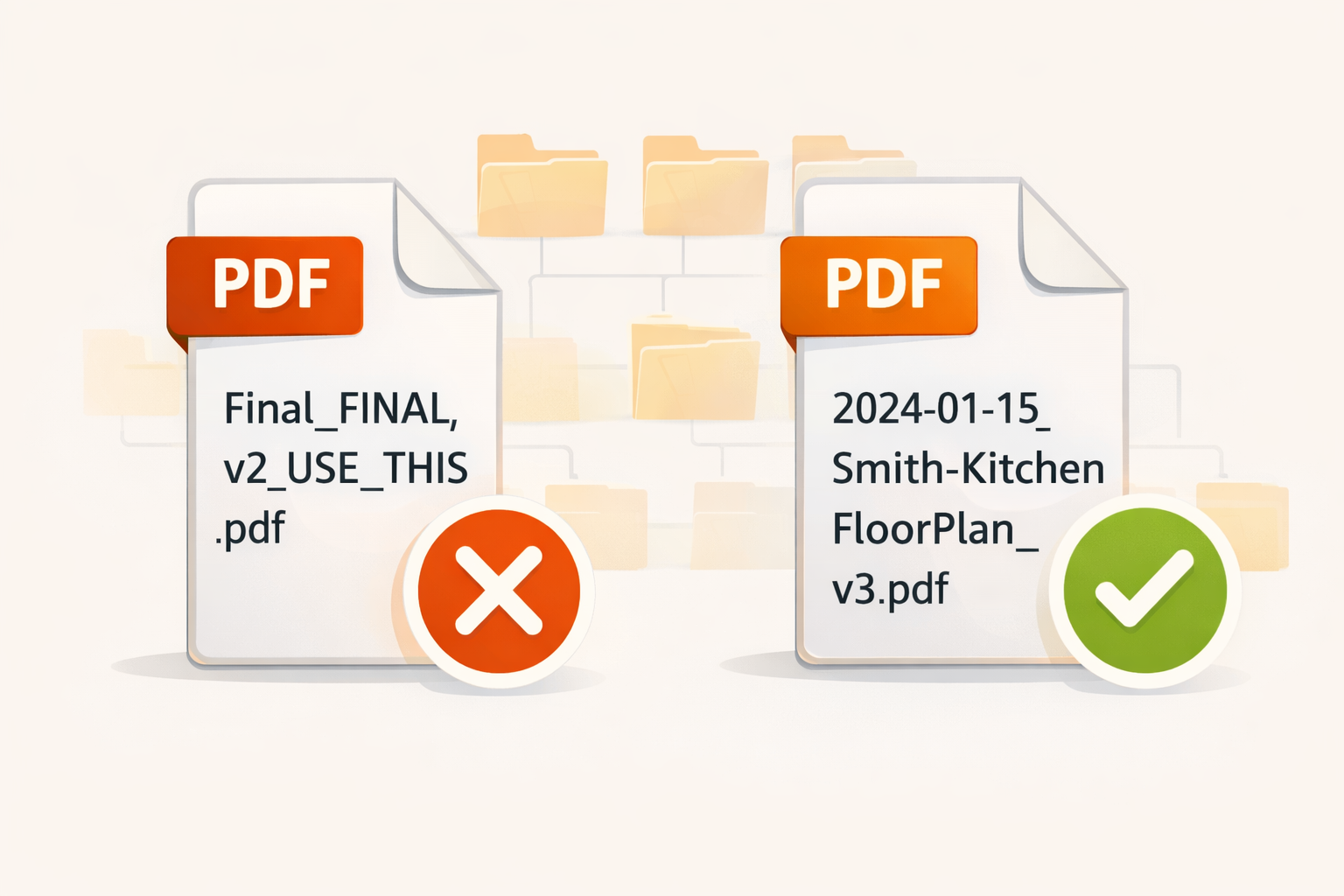
Use this format: [Date][Project Code][Document Type][Description][Version]
Example: 2024-01-15_SM-Kitchen_Drawing_Floor-Plan_v3.pdf
This tells you when the file was created, which project it belongs to, what type of document it is, and which version—all without opening it.
Date Formatting Rules
Always use YYYY-MM-DD format (like 2024-01-15) because it makes files sort chronologically automatically. Recent blueprints and drawings appear at the top of your folder.
Project Code System
Use short, memorable codes your crew recognizes instantly. Try combining client initials with job type or address—“JD-Bathroom” for John Davis’s bathroom remodel or “MC-142Main” for the McDonald project at 142 Main Street. Keep a master list in your shared project folders.
Document Type Abbreviations
Standardize common abbreviations: DWG for drawings, CO for change orders, RFI for requests for information, INV for invoices, and PHOTO for site photos. Share this list with everyone who touches your digital filing system.
Version Control Naming
Use v1, v2, v3 for general revisions or REV-A, REV-B for formal drawing revisions matching your title blocks. Once a document is signed off, add “FINAL” or “APPROVED” to the filename.
What to Avoid
Never use spaces—stick with hyphens or underscores. Special characters like /, , or * cause headaches when transferring files between platforms. Resist naming anything “final final” or “updated version.”
Handling Drawings and Blueprints
Always include sheet numbers in the filename (like A-101 for architectural sheets or S-201 for structural) and add the revision date to match the title block.
Example: 2024-01-15_MC-142Main_DWG_A-101-Floor-Plan_REV-B.pdf
Step-by-Step: Setting Up Your System to Organize Construction Documents Digitally
Choose and Configure Cloud Storage
Sign up for a service offering at least 100GB to start. Download both desktop sync app and mobile version. Set up two-factor authentication and create shared access for team members.
Build Your Master Folder Structure
Create two top-level folders: “Active Projects” and “Archive.” Set up a PROJECT TEMPLATE folder containing all numbered category subfolders. Add a “Company Documents” folder for items you reference across multiple jobs: insurance certificates, licenses, equipment manuals, and vendor contacts.
Establish Your File Naming Convention Document
Create a simple one-page guide showing your naming formula, common abbreviations, and real examples. Save this reference guide in your master folder where everyone can find it.
Start with One Pilot Project
Pick a current active job and create its folder from your template. Begin uploading today’s documents using your new naming convention. You’ll learn what works without the pressure of converting everything at once.
Digitize Critical Legacy Documents
Focus on warranties still in effect, ongoing legal matters, and frequently referenced as-built documents. Your smartphone scanning app handles small batches perfectly, while professional scanning services make sense for large volumes.
Set Up Jobsite Access
Make sure field teams can pull up the latest drawings on their phones. Create quick-reference guides for common tasks. Test everything at an actual jobsite with typical cell service conditions before relying on it.
Create Your Daily Upload Routine
Designate ten minutes at day’s end to upload new photos, change orders, and correspondence. Making this a consistent habit prevents document backlog.
Managing the Transition: Working with Paper and Digital
You won’t flip a switch and go completely paperless overnight. Most pros need 6-12 months running parallel paper and digital systems before they’re comfortable going fully digital.
Handling Paper Documents on Jobsites
Keep a designated inbox folder in your truck for any paper you receive. Before leaving the site, take two minutes to scan documents using your smartphone. Add a “SCANNED” stamp to the paper copy, then file it in a temporary archive box.
Dealing with Paper-Only Subcontractors
When a sub hands you their submittal, invoice, or insurance certificate, scan it immediately and send them a PDF copy via email. This creates a digital record and often encourages them to email documents directly next time.
Managing Clients Who Want Paper
Maintain your cloud storage construction system as the master record, then print from those digital files when clients request paper copies. This gives you document version control while keeping clients happy.
Marking Up Construction Plans
Use PDF annotation apps like Bluebeam, Adobe Acrobat mobile, or free options like Foxit. If you prefer marking paper drawings, photograph them afterward and save the photos with clear file naming conventions.
Creating a Document Retention Policy
Decide which paper documents truly must be kept—typically only original signed contracts and documents with legal significance. Scan everything else, verify the digital copy is readable, then securely dispose of the paper.
The Six-Month Review Checkpoint
Evaluate what’s working, identify where your team keeps reverting to paper and why, then adjust based on real jobsite documentation challenges.
Construction File Management Software: When to Upgrade
Basic cloud storage works great when starting out, but there comes a point when Google Drive or Dropbox can’t keep up with your growing business.
Signs You’ve Outgrown Basic Storage
Managing more than 10 concurrent projects, coordinating multiple subcontractors per job, struggling with drawing version control, or needing detailed permission controls all signal it’s time to upgrade.
Purpose-Built Platforms
Procore, PlanGrid, Buildertrend, and CoConstruct offer construction-specific features generic cloud storage can’t match—automatic RFI tracking, submittal workflows, and seamless integration with accounting software.
Cost-Benefit Analysis
Basic cloud storage at $10-20 monthly works for 1-3 person operations. Mid-tier construction software running $50-200 monthly makes sense when document chaos starts costing more than the subscription.
Features Worth Paying For
Automatic version control preventing teams from working with yesterday’s drawings, mobile-first design for true jobsite documentation access, and automated backup and recovery justify the investment.
The Gradual Upgrade Path
Start with cloud storage to establish good habits, then add specialized tools for your biggest pain point, expanding only when clear ROI exists.
Common Mistakes to Avoid
Creating Overly Complex Folder Structures
Stick to a maximum of three to four levels deep in your construction plans storage. Train your team to use the search function instead of creating another subfolder.
Inconsistent File Naming Across Team Members
Create a simple visual cheat sheet showing exactly how to name blueprints and drawings, RFIs and submittals, and photos. Review everyone’s uploads during the first few weeks until proper file naming conventions become second nature.
Not Backing Up Your Cloud Storage
Set up automatic secondary backup to an external hard drive or second cloud service for critical project documentation.
Failing to Control Drawing Versions
Only the current revision stays in your main project folders. The instant a new version arrives, move the old one to an “Archive-Old Revisions” subfolder.
Uploading Photos Without Context
Instead of “IMG_2847.jpg,” name your jobsite documentation: “2024-01-15_Kitchen_Plumbing-Rough-In_Before-Inspection.jpg”
Not Setting Up Offline Access
Before leaving the office, mark essential documents like current drawings, permits, and specs for offline access in your mobile app.
Pro Tips for Long-Term Maintenance
Weekly Maintenance Ritual
Block off 15 minutes every Friday to review the week’s uploads, fix any file names that slipped through, and move misplaced documents to correct project folders.
Photo Documentation Strategy
Take systematic progress photos at consistent intervals. Create separate subfolders organized by date or construction phase. Include a person or measuring tape in shots for scale reference.
Email Integration Workflow
Forward important project emails to a project-specific email address that automatically organizes them. Use your email client’s ‘Save to Cloud’ feature to drop messages directly into the right folder.
Handling As-Built Documentation
Create your dedicated ‘As-Built’ folder when you set up the project, then mark up blueprints and drawings throughout construction. Snap a photo immediately when field modifications differ from plans.
Client and Subcontractor Sharing
Set up a separate ‘Client Shared’ folder within each project containing only documents they should access. Use view-only permissions unless clients specifically need upload capabilities.
Construction Records Retention Guide
Keep tax-related paperwork for seven years minimum, warranty and as-built documents for the warranty period plus two years, and contract documents plus change orders for your state’s statute of limitations period—typically six to ten years.
Annual Archive Process
At year-end, move completed projects into an ‘Archive [Year]’ folder, create a brief project summary document with key details and final photos, and export critical files to your external backup.
Training New Team Members
Have new hires shadow the uploading process during their first week, provide them with your naming convention guide and folder structure map, and assign a mentor to review their first uploads.
Conclusion
When you organize construction documents digitally with the right system, you transform how you run projects. Your folder structure, file naming conventions, and daily upload routine matter far more than which software you choose. Focus on implementing the core system first—master folders, project templates, and basic naming rules—then refine based on what works in your daily operations.
The transition to digital document management construction doesn’t happen overnight. Start with one current project, get comfortable with the workflow, then gradually expand to other active jobs. The contractors who succeed with paperless construction documentation commit to the daily habit of uploading and organizing files.
Take action now: choose your cloud storage platform this week, set up your master folder structure this weekend, and start your first project on Monday. Within 30 days, you’ll wonder how you ever managed projects with paper files scattered everywhere. As your system matures, explore specialized construction file management software, but remember that good organizational habits beat expensive software every time.
Frequently Asked Questions
How long does it take to organize construction documents digitally for an existing business?
Initial setup of folder structure and naming conventions takes 4-6 hours. Per-project migration for active jobs requires 2-3 hours each to scan and organize existing documents. Most contractors should plan 2-3 weeks to fully transition active projects while maintaining daily operations. Legacy project archives can be handled gradually over 3-6 months during slow periods. Start with new projects immediately using the proper system rather than waiting until everything is perfect.
What is the best way to name construction project files?
Use the formula: [Date][Project-Code][Document-Type][Description][Version]. Always format dates as YYYY-MM-DD so files sort chronologically automatically. Create short project codes (client initials + job type) that your team will recognize instantly. Standardize document type abbreviations (DWG for drawings, CO for change orders, RFI for requests). Avoid spaces—use hyphens or underscores instead. Include version numbers (v1, v2, v3) or revision letters (REV-A, REV-B) to track changes clearly.
How long should contractors keep digital construction records?
Tax-related documents (invoices, receipts, payments): minimum 7 years per IRS requirements. Contracts and change orders: 6-10 years depending on your state’s statute of limitations. Warranty and as-built documents: length of warranty period plus 2 additional years minimum. Permits and inspection reports: permanently or until property changes ownership. Progress photos and general project documentation: indefinitely since digital storage is inexpensive. Check your state’s specific requirements and insurance policy requirements, which may mandate longer retention periods.
What software do contractors use for document management?
Small contractors (1-5 employees): Google Drive, Dropbox, or Microsoft OneDrive ($10-20/month) covers most needs effectively. Growing contractors (5-15 employees): Buildertrend, CoConstruct, or Fieldwire ($50-150/month) add construction-specific features. Larger contractors (15+ employees): Procore, PlanGrid, or Autodesk Construction Cloud ($200+/month) for enterprise features. The best software is what you’ll actually use consistently. Start simple with cloud storage and upgrade only when you clearly outgrow it. Your folder organization system and file naming habits matter more than which platform you choose.
How do I organize blueprints and drawings digitally?
Create a dedicated ‘Plans & Drawings’ folder within each project with subfolders for ‘Current’ and ‘Superseded’. Name drawing files with sheet number, description, revision date, and version: ‘2024-01-15_A-101_Floor-Plan_REV-C.pdf’. Keep only the current revision in the main folder—immediately move old versions to ‘Superseded’ subfolder when new revision arrives. Use PDF format for universal compatibility and ability to mark up on mobile devices. For large drawing sets, consider naming convention that sorts by discipline: A (Architectural), S (Structural), M (Mechanical), E (Electrical), P (Plumbing). Mark critical drawings for offline access in your mobile app.
What is the best folder structure for construction projects?
Use three-tier hierarchy: Company Master Folder > Individual Project Folders > Document Category Subfolders. Essential category subfolders: 01-Contracts, 02-Plans & Drawings, 03-Permits & Inspections, 04-RFIs & Submittals, 05-Change Orders, 06-Photos, 07-Invoices & Payment, 08-Warranties & Closeout, 09-Correspondence. Number your folders (01, 02, 03) so they always sort in the same order across all devices. Keep structure maximum 3-4 levels deep. Create a ‘PROJECT TEMPLATE’ folder with empty subfolders that you duplicate for each new job. Separate ‘Active Projects’ from ‘Completed Projects [Year]’ at the top level.
How can I access construction documents from the jobsite?
Install your cloud storage provider’s mobile app on your smartphone and tablet. Mark essential documents for offline access before leaving the office so they’re available without internet connection. Use PDF annotation apps like Adobe Acrobat mobile, Bluebeam, or free options like Foxit to mark up drawings in the field. Take advantage of smartphone scanning apps (Adobe Scan, CamScanner) to digitize paper documents received on jobsite immediately. Set up mobile hotspot or invest in tablet with cellular data if you frequently work in areas with poor wifi. Create quick-reference guide for field team showing how to find current drawings, upload photos, and access permits.
Can I organize construction documents digitally myself or should I hire someone?
This is absolutely a DIY project—you don’t need technical expertise, just willingness to follow a system consistently. Basic digital skills required: uploading files, creating folders, renaming documents, and using a smartphone app. Hiring help makes sense only if you have thousands of legacy paper documents to scan (use a document scanning service). The critical success factor is understanding your own workflow and project types, which no consultant knows better than you. Start with the system outlined in this guide, adjust based on what works for your business, and you’ll have it running smoothly within 30 days.